

Tour of the Studio
Every DEP workspace uses the same window layout. Learn it once on this page and you can find your way around every chapter of this guide. The examples use the Multi ECU powertrain coordination starter project.
The window at a glance
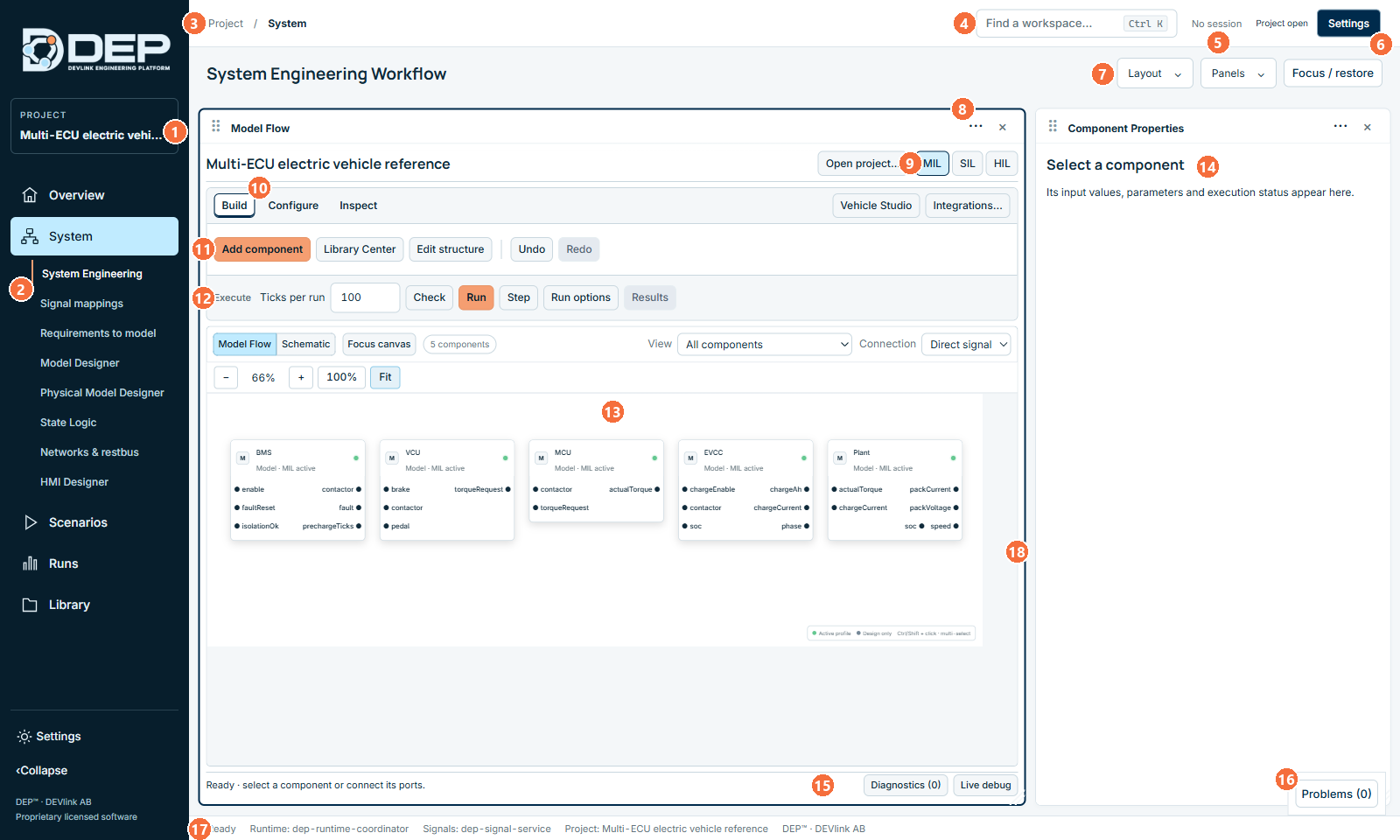
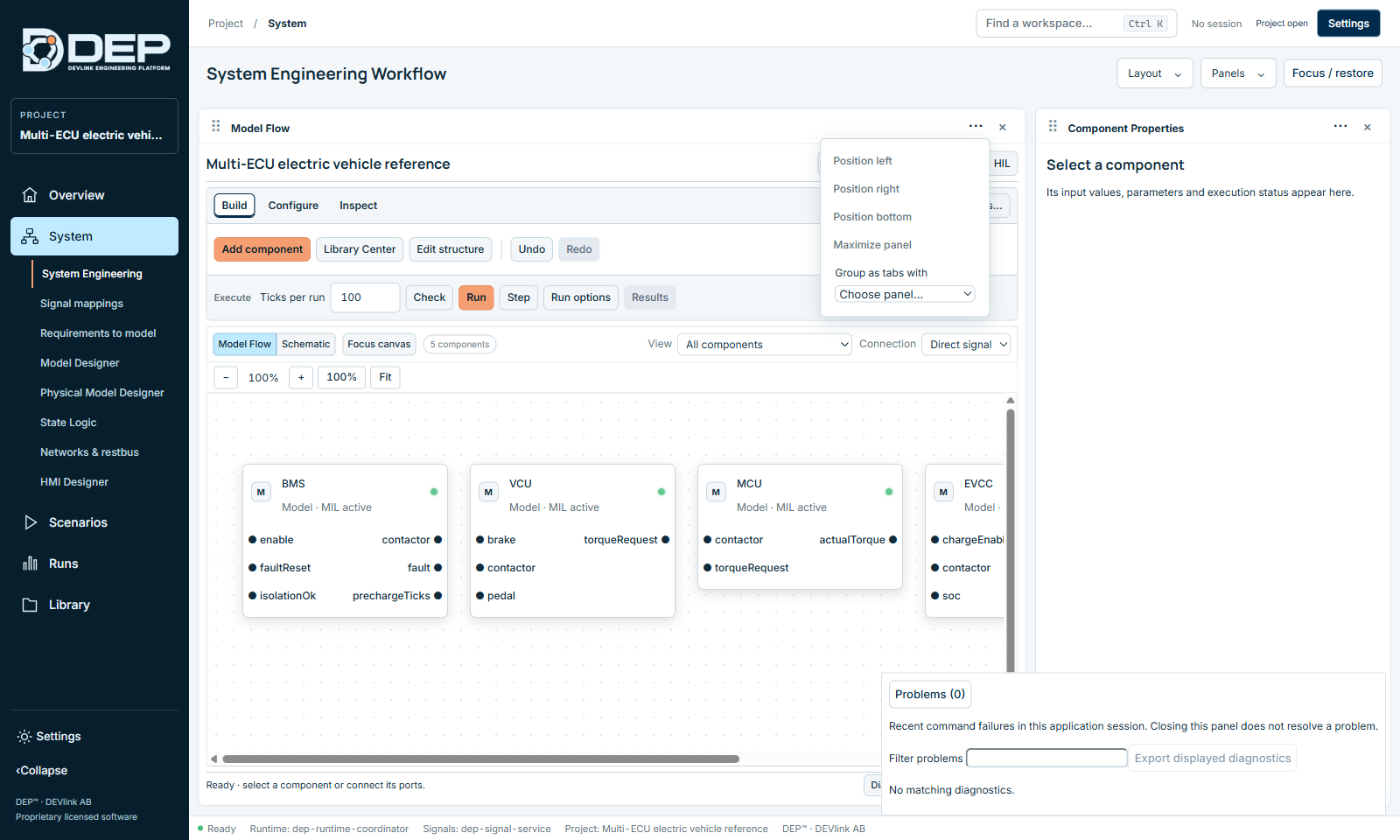
| # | Element | What it does |
|---|---|---|
| 1 | PROJECT button | Shows the open project. Click it to return to the project Overview. |
| 2 | Sidebar and sub-items | The five main areas: Overview, System, Scenarios, Runs and Library. Clicking an area expands its sub-items. The highlighted sub-item is the open workspace. |
| 3 | Breadcrumb | Shows where you are, for example Project / System. |
| 4 | Find a workspace… | Type part of a workspace name to jump to it. Shortcut Ctrl+K. |
| 5 | Execution status chip | Shows No session, or the profile, state and logical time of the running session, for example MIL · Running · 72.20 s. While a session exists, a Stop button appears next to it. The chip also shows Project open or Unsaved draft. |
| 6 | Settings | Opens DEP Settings: appearance, workspace help, AI connections, licence and About. See Settings Reference. |
| 7 | Layout, Panels, Focus / restore | Arrange the panels of the current workspace (see below). |
| 8 | Panel header | Drag the header to move a panel. ··· opens the panel menu and × hides the panel. |
| 9 | Profile buttons | MIL, SIL and HIL select the execution profile of the System. |
| 10 | Build · Configure · Inspect | Tabs of the System toolbar. Build edits the structure, Configure holds mappings and execution settings, and Inspect opens component lists, properties, signals and diagnostics. |
| 11 | Build toolbar | Add component, Library Center, Edit structure, Undo, Redo. |
| 12 | Execute bar | Ticks per run, Check, Run, Step, Run options, Results. See Running MIL and SIL. |
| 13 | Canvas | The Model Flow diagram of the System. Zoom with − / + or Fit. |
| 14 | Inspector panel | Here Component Properties. It shows the details of whatever you selected on the canvas. |
| 15 | Status line | The result of the last action, for example PASSED · check · System check passed. Next to it are Diagnostics (n) and Live debug. |
| 16 | Problems (n) | Recent failed commands in this session, with their outcome and next step. See Problems panel. |
| 17 | Status bar | The services in use (Runtime: dep-runtime-coordinator · Signals: dep-signal-service) and the project name. |
| 18 | Panel edge | Drag any edge or corner to resize a panel. |
Sidebar and workspaces
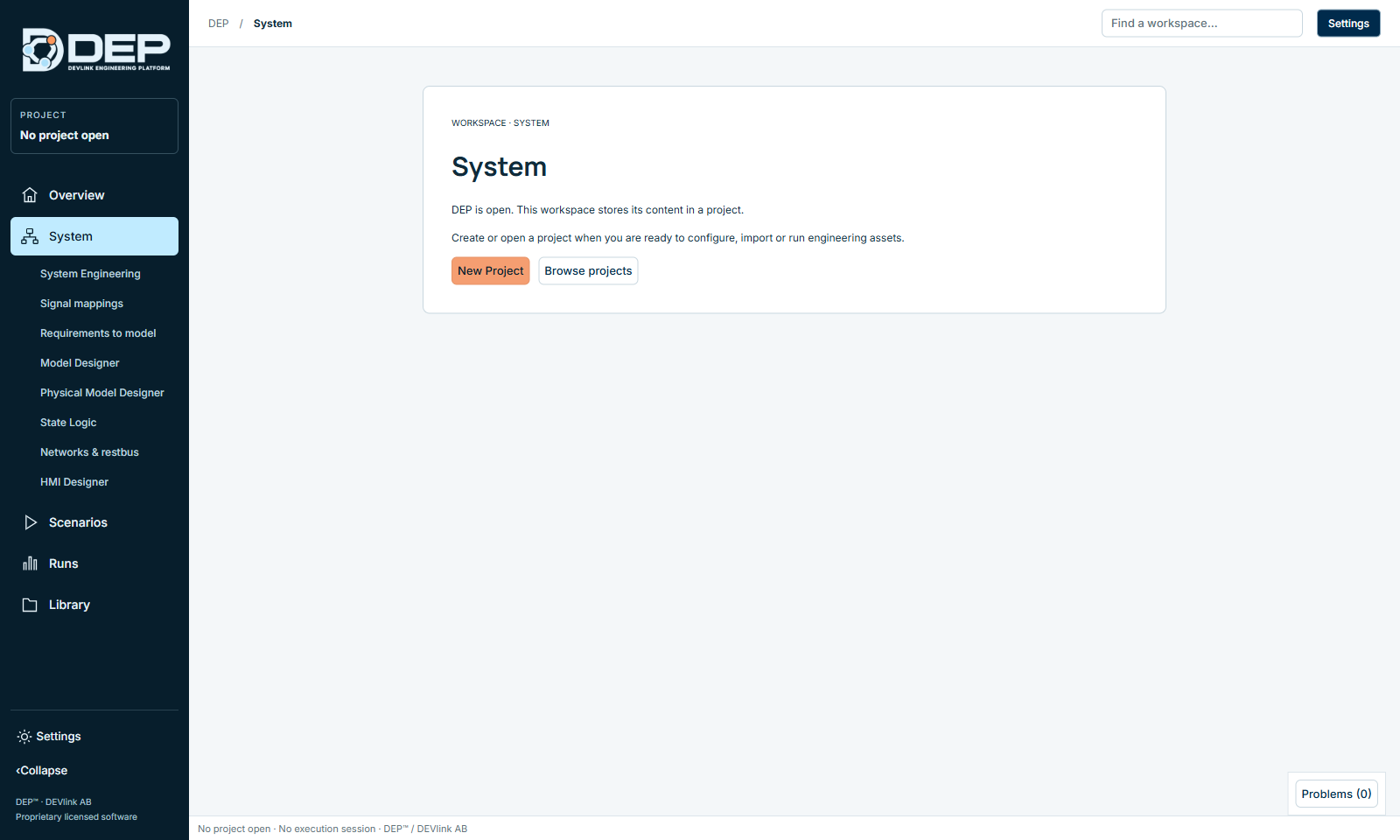
The sidebar lists every workspace. Click ‹ Collapse at the bottom to shrink the sidebar to icons, and click it again to expand it. DEP remembers your choice. Without a project, only the Overview works. The other workspaces show DEP is open. This workspace stores its content in a project. with New Project and Browse projects.
Some workspaces have an Activity selector in their toolbar. It switches between related views of the same workspace. For example, Networks has Overview / Topology, CAN / CAN FD and Traffic / Streaming, and Operator HMI has EVSE console. The chapters list the activities for each workspace.
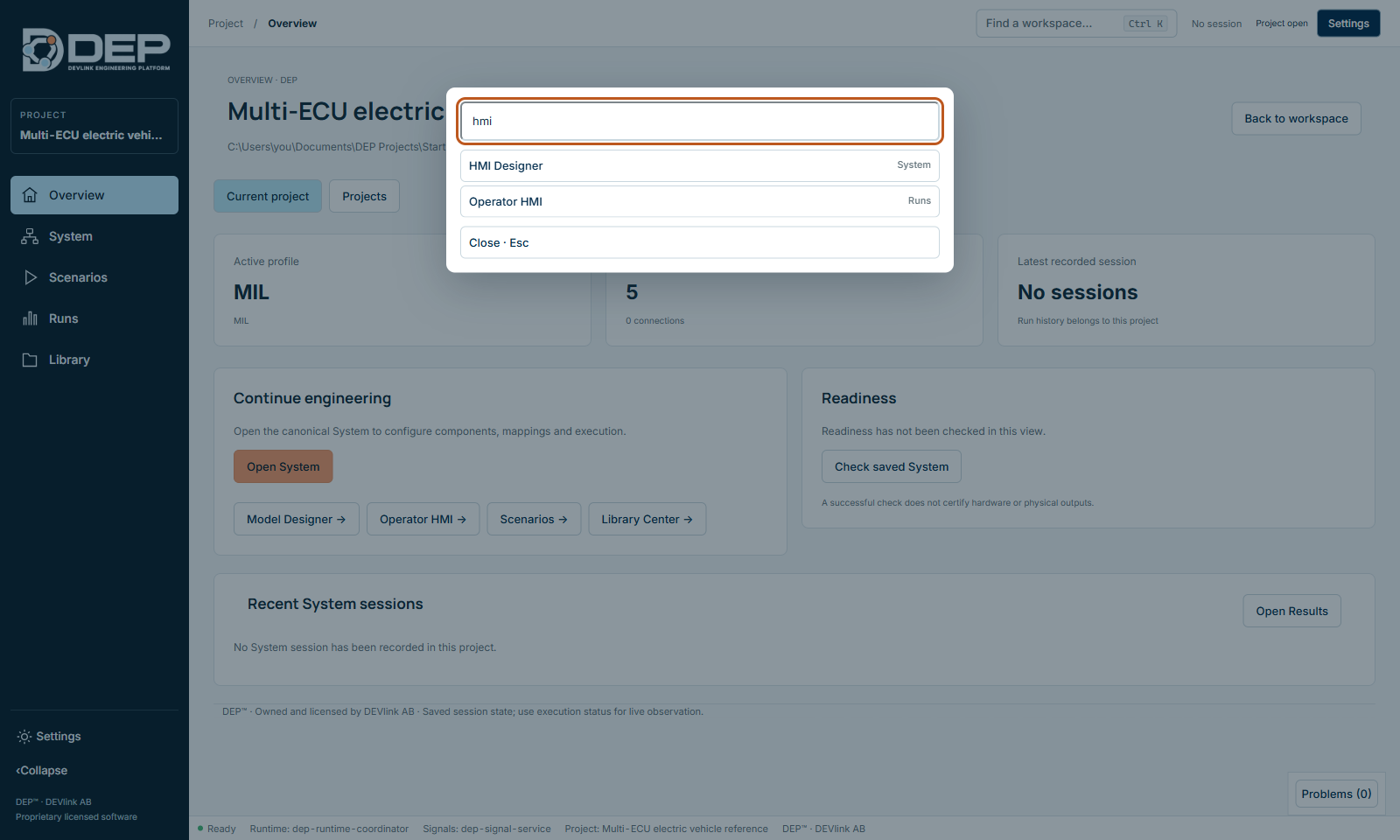
Find a workspace (Ctrl+K)
Press Ctrl+K anywhere, type a few letters and choose a result. Esc or Close · Esc closes the search.
Panels and layouts
Each workspace consists of floating panels. You arrange them freely, and DEP saves the arrangement separately for each project and each workspace, for your Windows user.
- Move: drag a panel by its header (the ⋮⋮ grip).
- Resize: drag an edge or corner. Panels are at least 240 × 150 pixels.
- Group as tabs: drop a panel on another panel's header when DEP shows Release to group with …. You can also use ··· → Group as tabs with.
- Panel menu ···: position the panel left, right or at the bottom, Maximize panel, Detach panel or Group as tabs with.
- Hide: × hides the panel. Get it back from the Panels menu, which shows ✓ for visible panels and + for hidden ones.
- Focus: Focus / restore enlarges the active panel. Esc returns to your previous arrangement.
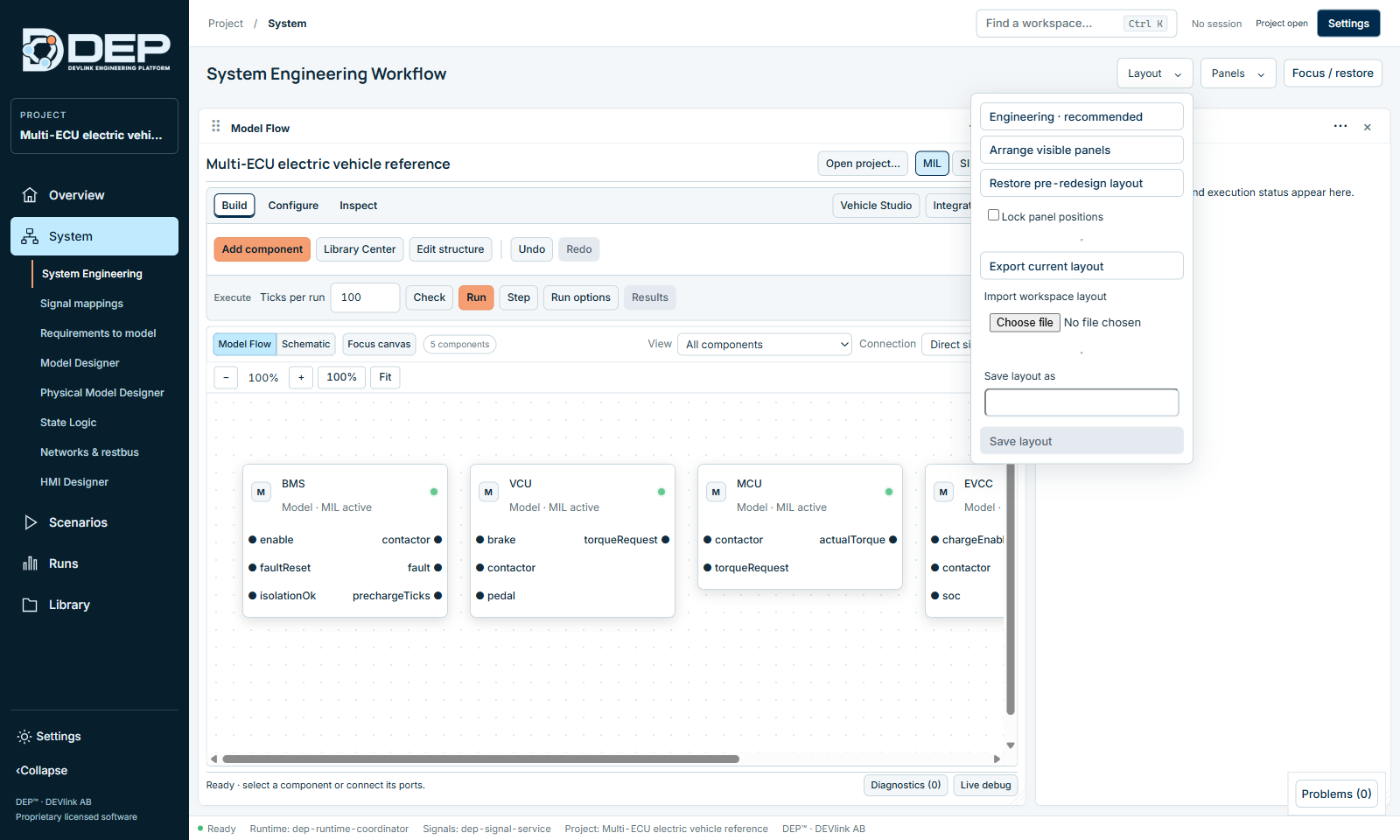
The Layout menu contains:
| Item | Use it to |
|---|---|
| Engineering · recommended | Restore the default arrangement of this workspace. Use it after you change the window size or lose a panel off screen. |
| Arrange visible panels | Bring all open panels back into view without changing which ones are open. |
| Restore pre-redesign layout | Return to the arrangement used before the current interface. |
| Lock panel positions | Prevent accidental dragging. |
| Save layout as / Save layout | Save the arrangement under a name for this project and workspace. Saved layouts are listed in the menu. Use × to delete one. |
| Export current layout / Import workspace layout / Apply imported layout | Share a layout with colleagues as DEP-workspace-layout.json. A layout made for a different workspace is rejected and your current layout is kept. |
Lost a panel? Open Layout → Engineering · recommended. Layout actions never stop a run or change models.
Problems panel
Problems (n) collects commands that failed in this application session. Each entry shows the severity, a title, the Outcome (what did or did not happen), the Next step, and the diagnostic details with a code such as DEP-RUN-OWNER. Use the filter box to narrow the list, and Export displayed diagnostics to save the entries as DEP_diagnostics_<time>.json for support. Closing the panel does not fix a problem. Codes are explained in Diagnostic Codes.
The Overview
The Overview has two tabs. Current project shows the open project and Projects is your project library.
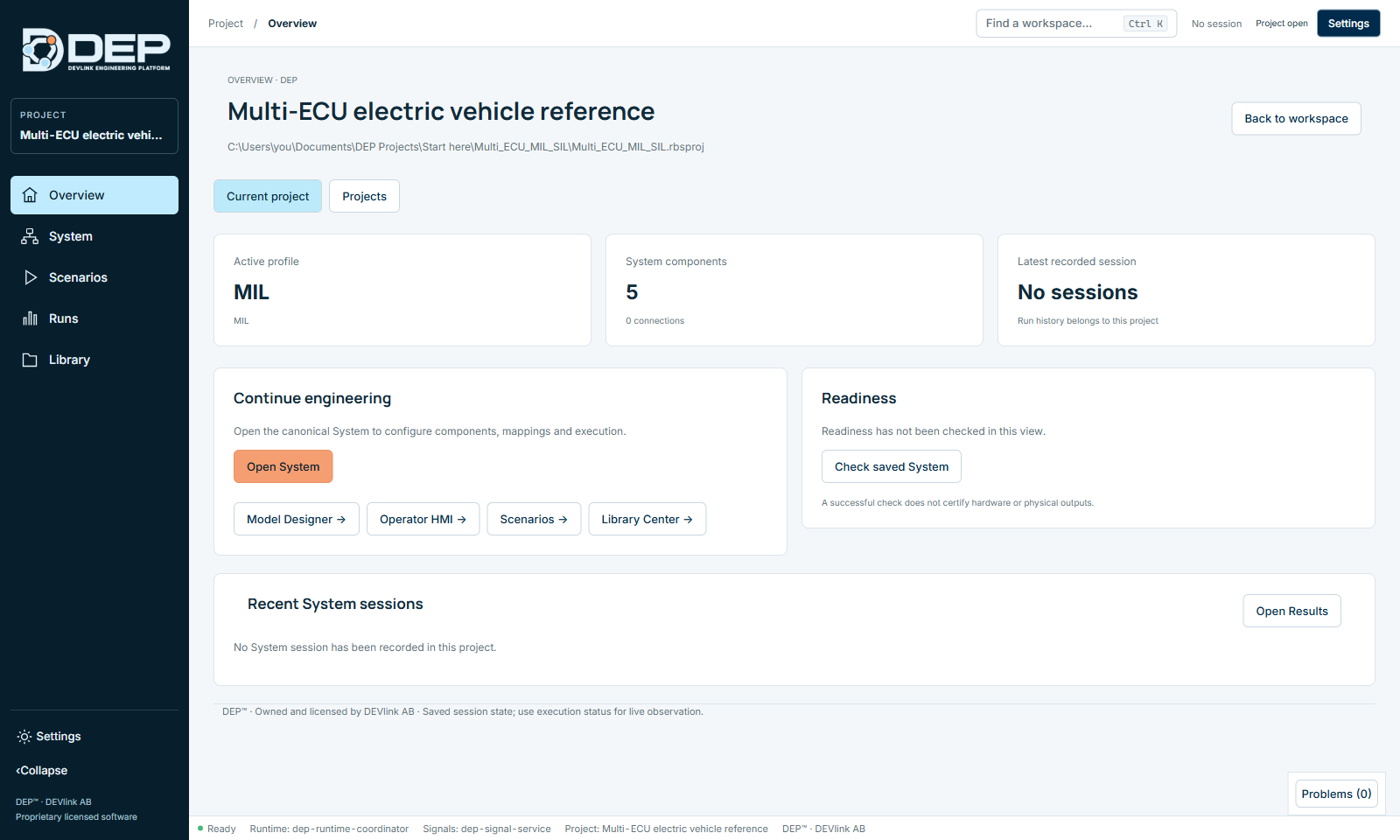
- Active profile, System components and Latest recorded session summarise the project.
- Continue engineering: Open System and shortcuts to Model Designer, Operator HMI, Scenarios and Library Center.
- Readiness: Check saved System runs the same check as Check in System Engineering, on the saved project. If something is wrong, you get the list and Review in System.
- Recent System sessions: one row per session with profile, status, simulation time and ticks. Open Results opens the results workspace.
- Back to workspace returns to the workspace you came from.
Menu bar
The Windows menu bar has File, Settings, Workspace, View and Help. The most used commands are File → New Project (Ctrl+N), Open Project... (Ctrl+O), Open Recent Project, Save Project (Ctrl+S) and Save Project As... (Ctrl+Shift+S). The full list is in Menus and Keyboard Shortcuts.
Messages you will see often
| Message | Meaning |
|---|---|
| PASSED · … | The action succeeded. A passed action is not a certification of the System. |
| BLOCKED · check · … | Check found something that prevents a run. The text says what. Fix it and press Check again. |
| Stop the current session to edit values. | Input values and structure are locked while a session exists. Press Stop or Reset & release session. |
| Physical outputs locked | DEP does not drive real outputs. This is expected. |
| STALE next to a value | The value comes from an earlier sample and is not live. |