

Projects, Files and Recovery
Everything you build in DEP lives in one project file with the extension .rbsproj. This includes the System, models, HMI pages, scenarios, run history and evidence. This chapter explains how to create, open, save, copy and recover projects.
Create a new project
- New ProjectChoose File → New Project (Ctrl+N), or New Project on the Overview.
- Choose a file nameIn Create DEP Studio project, choose a folder and a name. The default is
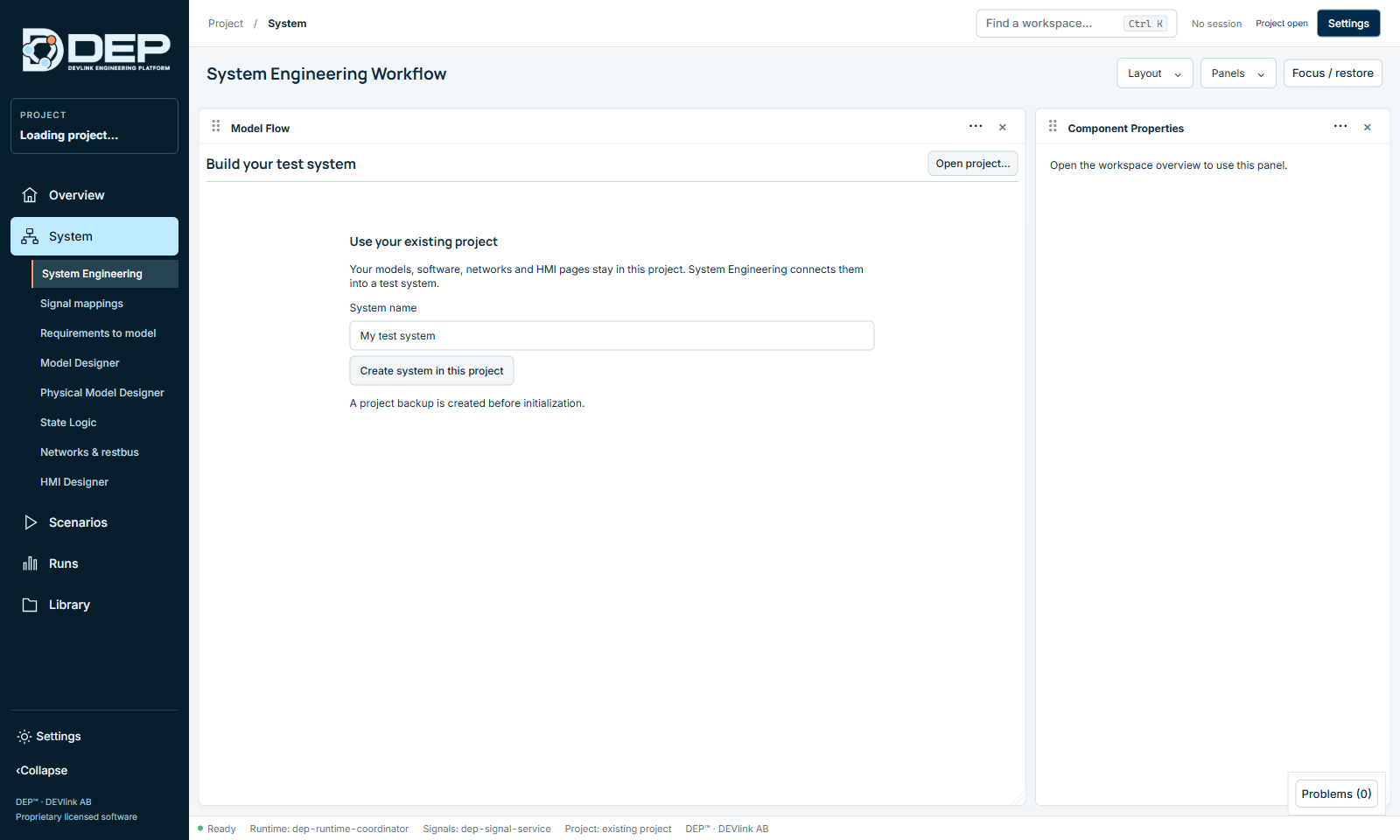
DEPproject.rbsproj. DEP creates the file and opens it. - Initialise the SystemOpen System → System Engineering. A new project shows Build your test system. Type a System name and select Create system in this project. DEP makes a backup before it initialises the System.
Continue with Build Your First System.
Open a project
- File → Open Project... (Ctrl+O) or Open Project… on the Overview. The dialog Open DEP Studio project accepts
.rbsproj, and also.sqliteand.dbfiles from older versions. - File → Open Recent Project lists recently opened files with their full paths. Files that no longer exist are greyed out.
- Overview → Projects shows all projects in your library folder (next section).
After opening, DEP shows the project Overview. Select Open System to start working.
The project library folder
The library is a folder you choose. DEP scans it and its subfolders for .rbsproj files.
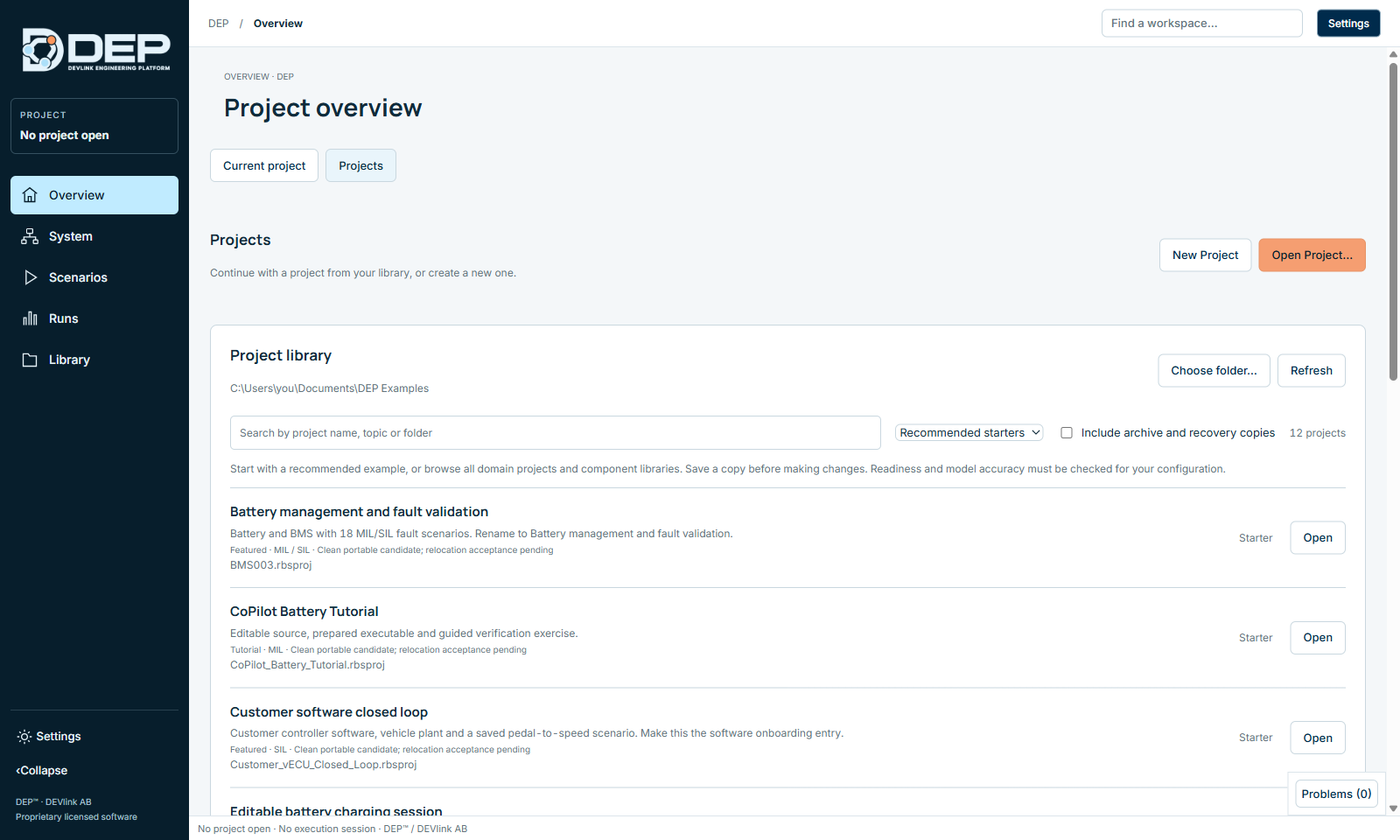
- Choose folder… selects the folder (dialog Choose DEP project library folder). DEP remembers it.
- Refresh scans again after you add files in Explorer.
- The search box searches by project name, topic and folder.
- Recommended starters and All projects and libraries appear when the folder contains a
DEP_PROJECT_CATALOG.jsoncatalogue. - Copies with names that contain
.recovery.,.backup.orrecovery-copy, and folders named Archive, Recovery, Development or Historical, are hidden unless you enable Include archive and recovery copies. - If the folder is very large, DEP shows This folder is too large to list completely. Choose a narrower folder.
Keep one folder per team or programme, for example Documents\DEP Projects, and make it your library. A new installation uses Documents\DEP Projects when no other library has been chosen and no bundled examples are present.
Save and Save As
Most edits are written to the project immediately, for example values you Save in Component Properties or a new connection. Editors with a draft, such as Model Designer, HMI Designer and State Logic, have their own Save button and show Unsaved until you save.
- File → Save Project (Ctrl+S) saves the project, including open drafts.
- File → Save Project As... (Ctrl+Shift+S) writes a copy under a new name and continues in the copy. Use it to create your working copy of an example.
- Saving a project that was opened from a
.sqliteor.dbfile always asks for a new.rbsprojname. - The top bar shows Unsaved draft while a draft is open, and the status bar shows ● Unsaved native model for Model Designer drafts.
When you close DEP with an unsaved native model, DEP asks The active native model has unsaved changes. Choose Cancel to go back and save, or Discard Changes and Exit.
Switching projects safely
If a model, HMI page or object source has unsaved changes, DEP asks before it creates or opens another project. If anything is still executing, DEP keeps the current project open and does not stop anything:
| Dialog | Cause | What to do |
|---|---|---|
Stop the active run before changing projects (DEP-PROJECT-RUNNING) | A System session is running, paused or faulted. | Select Go to Model Flow, then Stop or Reset & release session. |
Stop running software before changing projects (DEP-PROJECT-SOFTWARE) | A customer software process (SoftwareUnit) is running. | Select Go to owning workspace and stop the application. |
Stop and reconcile the target before changing projects (DEP-PROJECT-TARGET) | A remote HIL target session is active. | Stop the target session in Runs → HIL runtime. |
Select Keep current project to close the dialog without changes. The message Current project kept open. No execution was stopped. confirms that nothing happened.
Recovery copies
DEP protects you against crashes and damaged files:
- Every 60 seconds, and when you open, create or save, DEP writes
<name>.rbsproj.recovery.rbsprojnext to the project. - If the main file cannot be read when you open it, DEP opens the recovery copy automatically.
- To restore manually, close DEP and copy the recovery file to a new name ending in
.rbsproj. Keep the original file until you have checked the copy.
Initialising a System makes a project backup first, and System changes are stored as revisions, so evidence always refers to the exact revision that ran.
Copying, sharing and backing up projects
A project is a SQLite database. While DEP has it open, it uses two companion files, <name>.rbsproj-wal and <name>.rbsproj-shm.
- Close the project in DEP (open another project or exit DEP). The companion files are then merged into the main file.
- Copy the
.rbsprojfile. If-walor-shmfiles remain, copy them together with it. - If the project references files stored beside it or in the library, for example a
.dep-assets,.assetsor.dep-software-buildsfolder (DBC databases, FMUs or build outputs), copy those folders too and keep the same relative location.
Imported customer software keeps its original files and SHA-256 hashes in the project. Other assets, such as a DBC database, can be referenced by path. The network page shows the path, for example Replace …\.assets\…\CustomerCAN.dbc. DEP checks hashes when it runs, so it detects a changed binary instead of using it silently. After moving a project, open it and press Check to confirm that all assets resolve.
What is inside a project
| Content | Where you edit it |
|---|---|
| System graph: components, connections, profiles, values | System Engineering |
| Canonical signals and bus mappings | Signal Mappings |
| Native, physical and state-logic models with their versions | Model Designer, Physical, State Logic |
| Imported FMUs, SSP packages and customer software | Software, FMI and SSP |
| Networks, DBC databases, ECUs, messages and generators | Networks and Restbus |
| Scenarios, campaigns and run history | Scenarios |
| HMI pages and faceplates | Operator HMI |
| Sessions, samples, frames and evidence | Results and Recordings |