
State Logic
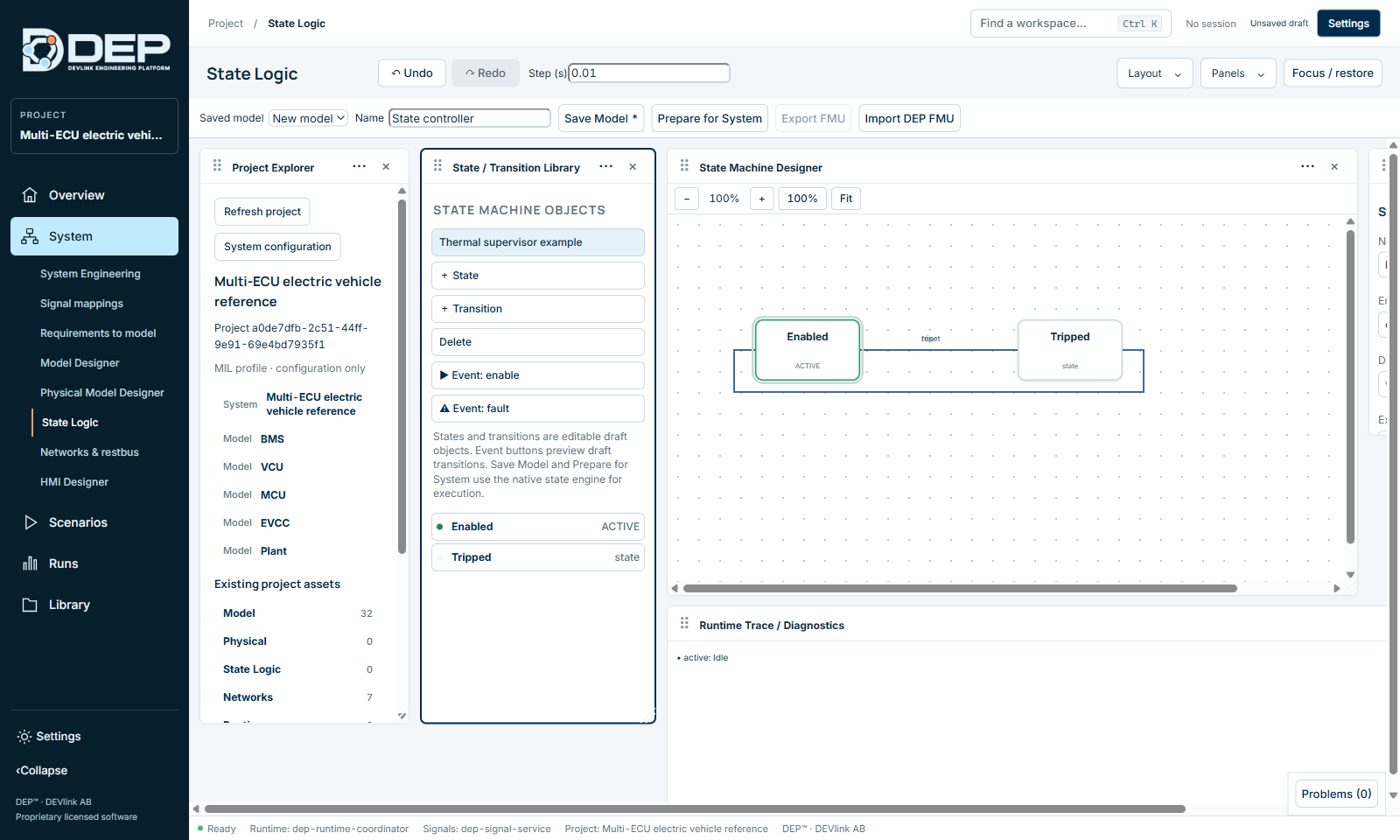
State Logic is DEP's state-machine designer, for supervisors, mode managers and sequencers such as a thermal supervisor or a charging sequence. You draw states and transitions, define variables and actions, and preview transitions with events. You then prepare the machine as an executable component for the System. Open it with System → State Logic.
The workspace
| Panel | Contents |
|---|---|
| Project Explorer | The project's System and existing assets, counted by type: Model, Physical, State Logic, Networks, Runtime, Test, HMI, Measurement / Calibration, Results. Counts are registered source records, not executable functionality. |
| State / Transition Library | Thermal supervisor example, + State, + Transition, Delete, the event buttons (for example ▶ Event: enable, ⚠ Event: fault) and the list of states. |
| State Machine Designer | The diagram, with zoom and Fit. |
| Inspector | Properties of the selected state or transition. |
| Runtime Trace / Diagnostics | The trace of the preview, for example • active: Idle. |
The toolbar also has Step (s) and the model bar: Saved model, Name, Save Model, Prepare for System, Export FMU and Import DEP FMU.
Try the example
- LoadSelect Thermal supervisor example. Three states appear: Idle (initial, ACTIVE), Active and Fault.
- Preview an eventSelect ▶ Event: enable. The draft follows the transition idle → active, and the trace shows the new active state.
- Raise a faultSelect ⚠ Event: fault to follow the fault transition.
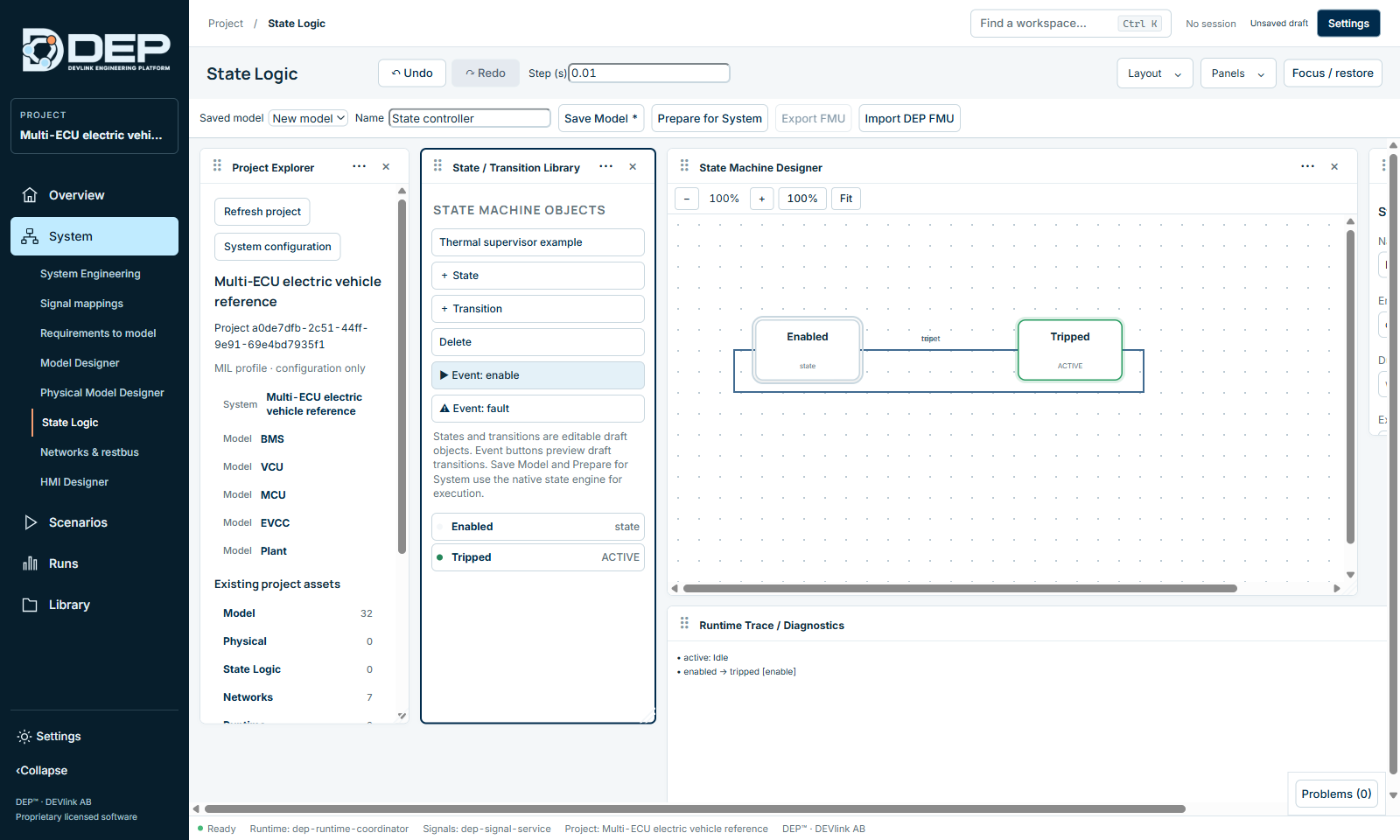
Event buttons preview the draft. They do not run the System. For execution, save the model and prepare it.
Edit states
Select a state to edit it in the inspector (State properties):
- Name, and Set as initial state.
- Entry action (on entry), During action (while active) and Exit action (on exit). Actions assign variables, for example
fan = 1. - Draft preview shows whether the state is active, and its outgoing and incoming transition counts.
Add states with + State. Duplicate with Ctrl+D. Remove with Delete.
Edit transitions
Select the source state, then + Transition. DEP adds a transition from that state to another state, and the button is disabled when no state is selected. Adjust the transition in the inspector's Transitions table, where each transition has:
| Field | Meaning |
|---|---|
| Event | The event that triggers it, for example enable or fault. |
| Guard | A condition that must also be true, for example temperature > 330. |
| Action | Assignments executed when the transition fires. |
| Priority | Decides between several transitions that could fire at the same time. |
Remove a transition with Delete transition.
Variables
Under Variables, select Add variable and set the name, direction (input, output or local), initial value and unit. Inputs and outputs become the ports of the component in the System. Use Remove variable to delete one.
Use the state machine in the System
- Type a Name and select Save Model.
- Select Prepare for System. DEP builds it with the native state engine.
- In System Engineering, add the prepared model with Add component, connect its ports and run.
Export FMU exports the machine for other tools. Import DEP FMU brings back a machine exported from DEP.