

Charging and the EVSE Console
DEP's charging workspace is the ChargeLink Operator panel, an EVSE console in the Operator HMI. It works in two ways. In a MIL charging session, DEP's own charging plant models run a complete charge with no protocol and no external software. In a live protocol session, the separately installed and separately licensed ChargeLink stack runs a real ISO 15118-20 DC exchange against an EVCC, while DEP supplies the simulated plant. Open the console with Runs → Operator HMI and the activity EVSE console.
| MIL charging session | Live protocol session | |
|---|---|---|
| Example project | Editable battery charging session | ChargeLink EVSE |
| External software | None | Compatible ChargeLink executable, TLS files, IPv6 network, EVCC peer |
| Protocol | None (Not used in MIL) | ISO 15118-20 DC (EIM) |
| Main button | ▶ Start MIL · 20% → 80% | ▶ Prepare session, then Start session |
| Licence | DEP Engineer | DEP, plus ChargeLink under its own licence |
The console
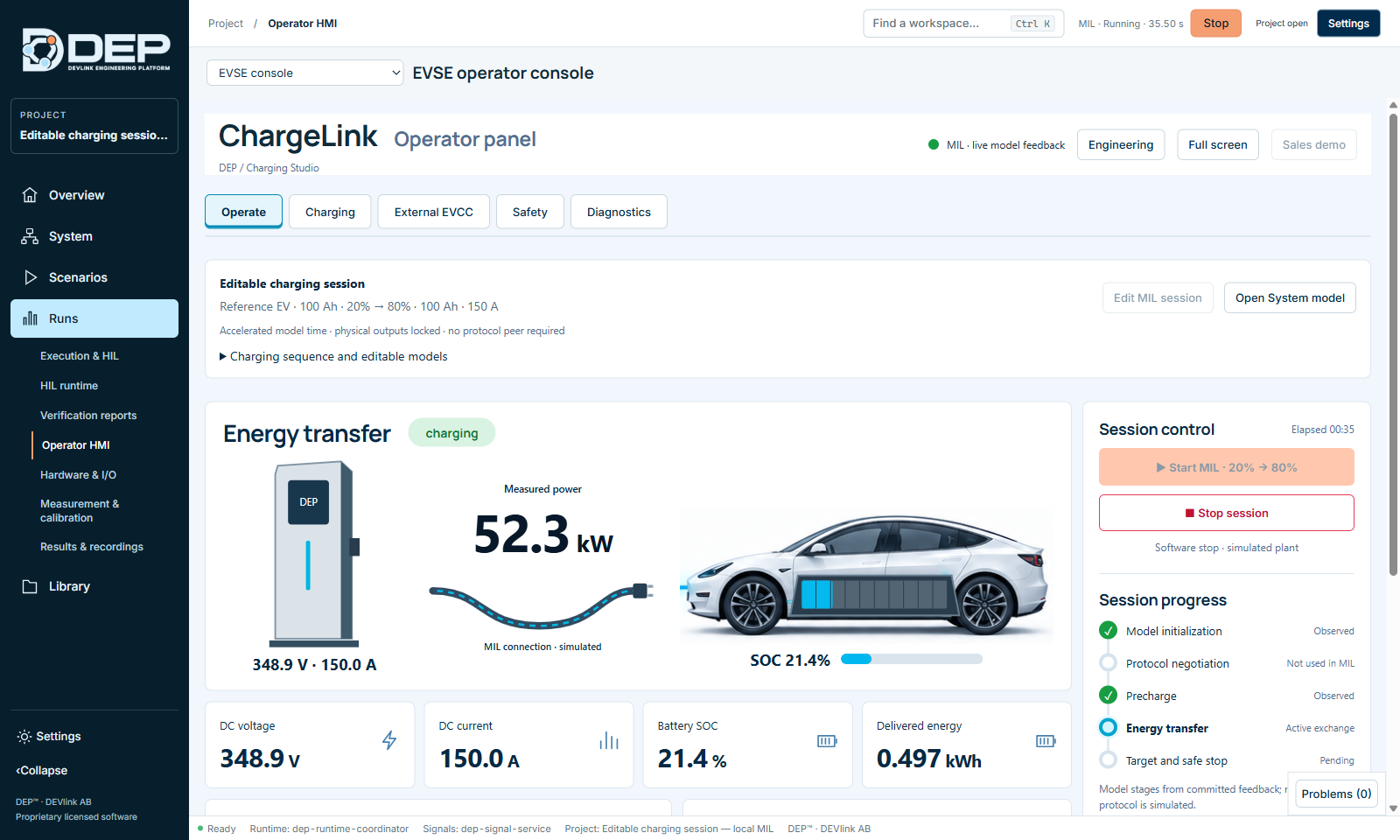
Header: connection state (No fresh plant data, MIL · live model feedback or MIL · retained final values), Engineering (connection and session settings), Full screen and Sales demo. Tabs:
| Tab | Contents |
|---|---|
| Operate | Session summary, energy-transfer graphic (EVSE, measured power, vehicle SOC), value cards (DC voltage, DC current, battery SOC, delivered energy), power and SOC trends, Session control, Session progress, Scenario (View scenarios, Saved charging tests), Health and ▧ Export report. |
| Charging | Charging measurements: EVSE voltage and current (Charger.PresentVoltageV, Charger.PresentCurrentA), battery voltage and SOC (Vehicle.BatteryVoltageV, Vehicle.SocPct); Start monitoring, Stop monitoring; reviewed simulation targets (Target voltage (V), Target current (A), Apply reviewed simulation command); signal quality and timestamps; DEP plant connection (Review DEP plant, Export plant review). |
| External EVCC | The vehicle-side EVCC simulator (see below). |
| Safety | Physical conditions (interlock, isolation, contactor feedback, physical output authority: Locked), Controlled stop (Stop session) and Recovery (Reconcile native session). |
| Diagnostics | Check API, Reconcile native session, recent events (time, operation, result), and native status and process output. |
Every tab repeats the engineering strip: Start MIL charge, Stop MIL, the plant feedback state and Export evidence.
MIL charging session
The complete walk-through, with screenshots of a full 20 → 80 % charge, is in First Session: Charge 20 → 80 %. In summary:
- Open Editable battery charging session, check the System, and open the EVSE console.
- Optionally select Edit MIL session to change the initial and target SOC, capacity, current and voltage limits, pack resistance and the thermal parameters. Then select Save session parameters.
- Select ▶ Start MIL · 20% → 80%. The stages Model initialization, Precharge, Energy transfer and Target and safe stop are ticked as they are observed.
- At the target, current falls to zero, the simulated contactor opens and the console shows 80% reached · stopped.
- Select ▧ Export report.
Charging sequence and editable models has buttons to edit each model in Model Designer: Edit battery, Edit thermal, Edit charger, Edit interlock and Edit controller. To change the voltage/SOC curve or the structure, edit the battery source, prepare a new version, and select it in System Engineering.
Charging test cases
Use Saved charging tests and View scenarios to work with charging scenarios. DEP can create four standard MIL charging cases (Create charging tests) and run them as a campaign (Run charging tests, Cancel campaign). It also provides Read signal snapshot and Export test report. Stop any MIL run in System first, otherwise DEP shows DEP-CHARGE-MIL.
Live protocol session with ChargeLink
A live session exchanges real protocol messages over your network. The ISO 15118-20 engineering profile is not EXI- or vendor-certified, and CableCheck is simulated. Physical power outputs remain locked: DEP never switches real power.
What you need
- A compatible
chargelink.exe. DEP checks the executable's identity and shows ChargeLink executable changed. Save its connection again before use. after an update. - TLS material: certificate, private key and CA certificate. Certificate files stay on your PC.
- An IPv6-capable network interface on the PC that runs ChargeLink, and an EVCC peer: a second PC, a vehicle ECU, or ChargeLink's own EVCC simulator.
Configure the connection
Open ChargeLink EVSE, open the EVSE console and select Engineering.
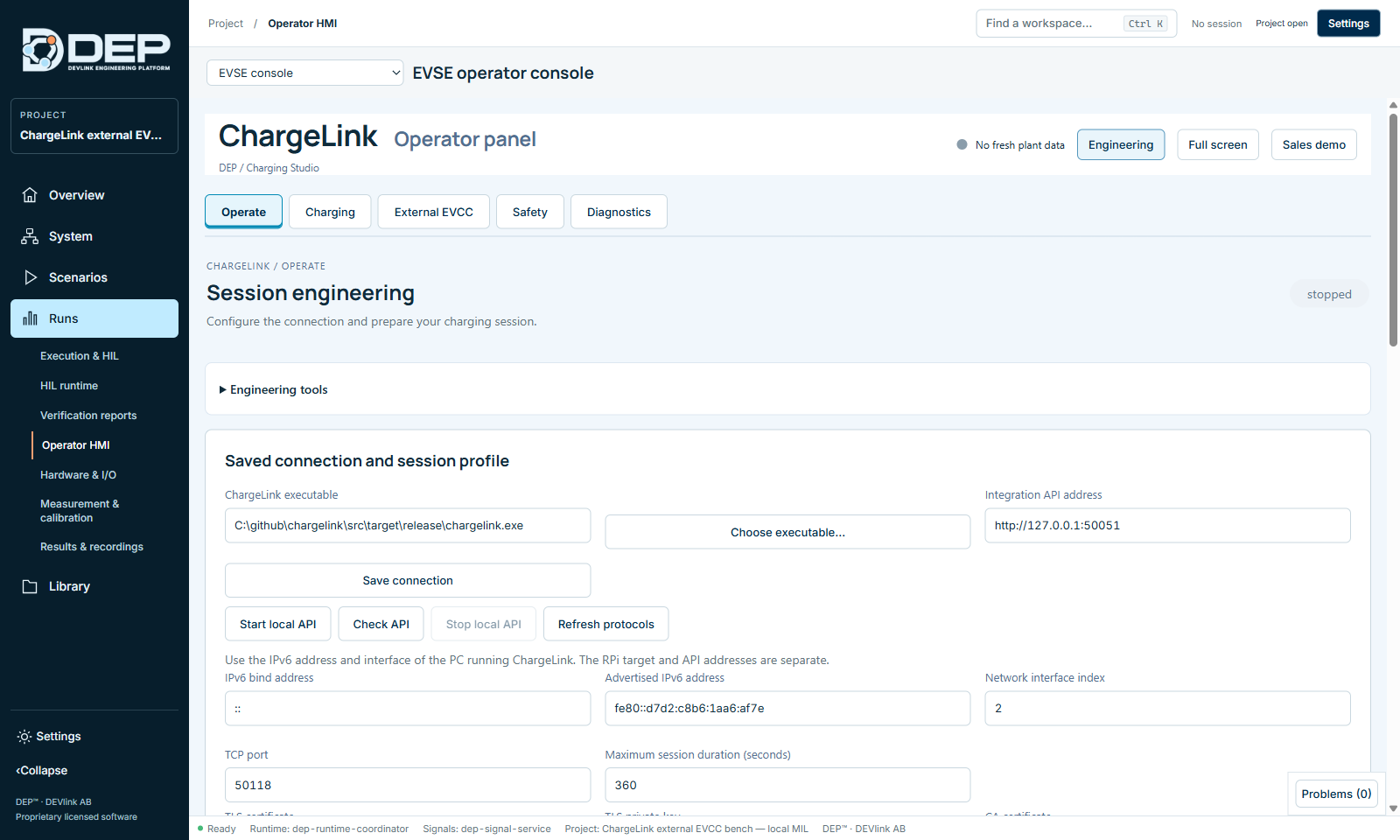
| Setting | Meaning |
|---|---|
| ChargeLink executable → Choose executable… | The installed chargelink.exe. |
| Integration API address | The local gRPC API of ChargeLink. Select Save connection, then Start local API and Check API. Stop local API stops it, and Refresh protocols reads the supported protocols and profiles. |
| IPv6 bind address, Advertised IPv6 address, Network interface index, TCP port | The network of the PC that runs ChargeLink. These are separate from any RPi target or API address. |
| Maximum session duration (seconds) | The run is bounded by this duration, for example 360 s. |
| TLS certificate, TLS private key, CA certificate | TLS material. Certificate files remain local. |
| Connect ChargeLink to this DEP plant | When enabled, Start session also runs the saved MIL plant models under one DEP owner. Leave it off for standalone bench tests. |
| ChargeLink runtime profile JSON, Initial target voltage (V), Requested power (kW) | Session profile values. |
| Protocol stack / profile | For example iso15118-20 · iso15118_20_dc, as reported by ChargeLink. |
Run the session
- Select the protocol and profileOn Operate, choose the protocol (ISO 15118-20), the role (EVSE), the transport (Ethernet / IPv6) and the profile.
- PrepareSelect ▶ Prepare session (in Engineering: Prepare simulation). DEP validates the saved profile before it opens the protocol listener. A prepared session is valid for 5 minutes.
- StartSelect Start session. The EVSE listens for the EVCC.
- Connect the EVCCStart your external EVCC, or use the External EVCC tab (below).
- ObserveSession progress shows Connection, Negotiation, Precharge, Energy transfer and Session complete as they are observed on the wire. A stop exchange alone is not a charging-success verdict.
- Stop and exportStop session, then Export evidence or ▧ Export report.
Leaving the panel does not stop the EVSE, but the session ends at the saved maximum duration. If communication is lost, the state is Unknown, not Stopped. Use Reconcile native session on the Safety or Diagnostics tab before you start again.
External EVCC (vehicle side)
- ChargeLink EVCC simulator: runs a native EVCC on this PC against the saved EVSE listener, with the initial managed profile ISO 15118-20 DC EIM Scheduled. It uses ChargeLink's reference battery, not the DEP plant models.
- Settings: EVSE peer IPv6, local interface index, discovery mode (Direct IPv6 / no SDP or SDP).
- Order of operations: Save EVCC profile and prepare the EVCC, start the EVSE on Operate, then start the EVCC here. Use Refresh EVCC status to follow it, and Request EVCC stop to end it. A stop request waits for the process to exit. Terminating the process interrupts the exchange and is not a graceful stop.
Troubleshooting charging
| Symptom | Cause and fix |
|---|---|
DEP-CHARGE-API | The ChargeLink API is not reachable. Check the executable path and the API address, then Start local API and Check API. |
| ChargeLink executable changed… | The executable was replaced. Choose it again and select Save connection. |
| EVSE run identity does not match the open project revision. | The last EVSE run belongs to an older revision of the project. Prepare a new session. |
| Values show No valid sample | Monitoring is not running, or no session is producing data. Start monitoring or a session. |
| Start MIL is disabled | A session is already running. Stop it first. Session parameters can be edited only while stopped. |