

Software, FMI and SSP
DEP runs more than its own models. You can import FMUs from other tools, onboard compiled customer software as virtual ECUs (vECUs), and import or compose whole systems described in SSP. This chapter covers the three Library workspaces: Software integration, Software / FMI / SSP and SSP import & composition.
Customer software (vECU)
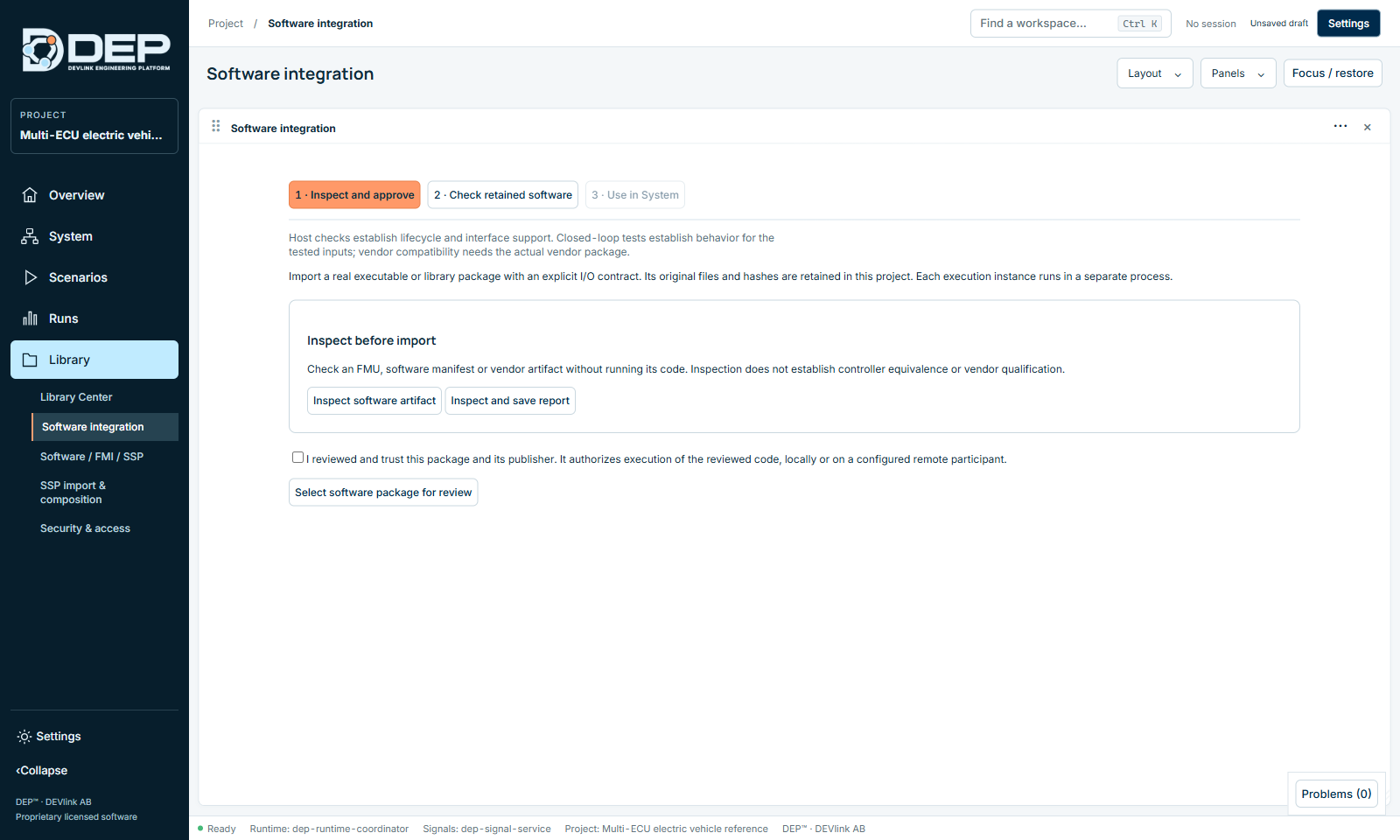
Open Library → Software integration. The workspace has three tabs: 1 · Inspect and approve, 2 · Check retained software and 3 · Use in System.
Supported software formats
| Adapter | What it is |
|---|---|
| jsonl-v1 | An executable that exchanges one JSON line per step over standard input/output. |
| native-v1 | A Windows DLL with DEP's native step interface. |
| oneshot-json-v1 | An executable called once per step with JSON input and output. |
| FMI 2 / FMI 3 co-simulation | A software FMU with a Windows x64 binary. |
| SIL Kit participant | Software that runs as a SIL Kit participant. It needs a SIL Kit registry and peer. |
A package is described by a manifest, software.depvecu.json, that lists the files, the I/O contract (port names, directions, units and types) and the step period. The DEP vECU Customer Templates package from DEVlink contains working BMS, EVCC, MCU and VCU examples in each format.
Onboard a package
- InspectOn tab 1, select Select software package for review and choose the package, FMU or manifest. Select Inspect software artifact, or Inspect and save report to keep the inspection report. Inspection reads the files without running any code.
- Review and trustRead the inspection report: files, hashes, publisher and interface. If you trust the package, tick I reviewed and trust this package and its publisher. It authorizes execution of the reviewed code, locally or on a configured remote participant.
- Approve and importSelect Approve and import reviewed package. The original files and their hashes are kept in the project.
- CheckOn tab 2, check the retained software. A host check confirms that the process starts, follows the lifecycle and matches the interface. Use Refresh process health to update the status.
- Use in SystemOn tab 3, select Add imported software to System, or assign it as the SIL implementation of an existing component (Integrations… → Assign SIL implementation). Select Use local SIL profile, then run Check.
Approving a package authorises DEP to execute its code on this PC. Only approve software from a publisher you trust. Each software instance runs in its own process, but it runs with your Windows user's rights. Do not start vECU executables by double-clicking them: DEP starts and stops them itself.
Inspection and host checks do not establish controller equivalence or vendor approval. Closed-loop scenarios establish behaviour only for the inputs you tested.
FMUs
Open Library → Software / FMI / SSP to see the Project software and model catalog.
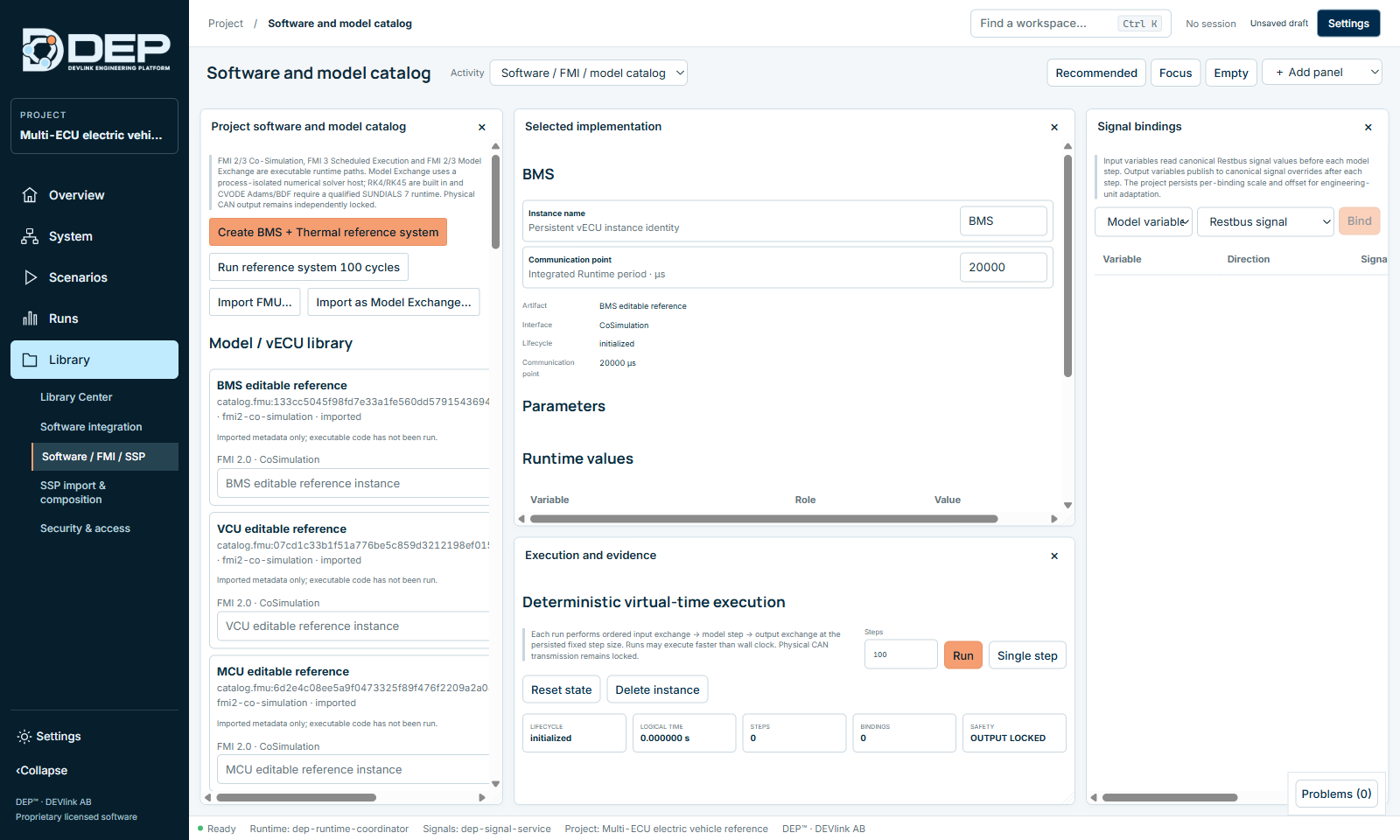
- Import FMU… imports an FMI 2 or FMI 3 co-simulation FMU (dialog Import vECU / FMU). DEP reads its metadata. The status Imported metadata only; executable code has not been run. means the code has not been run yet.
- Import as Model Exchange… imports a model-exchange FMU. DEP solves it in a separate solver host. Choose the solver: Euler fixed-step, Implicit Euler / Newton (ODE), RK4 fixed-step, RK4 fixed-step or RK45 Dormand–Prince, with tolerances and step sizes. Restart solver host restarts the host process.
- Each catalogue entry shows its identity (
catalog.fmu:<sha256>orsoftware.<sha256>), its kind and its status (imported, ready).
To use an FMU in the System, add it with Add component → Import SSP or FMU, or assign it as an implementation in Integrations…. An FMU without a Windows x64 binary is rejected (DEP-FMI-WIN64-MISSING).
Instances in the integrated runtime
The catalogue can also run models directly in the integrated (restbus) runtime, without the System. Select Instantiate on an entry and give it an Instance name. Then use Signal Bindings to bind model variables to restbus signals (Bind, with optional scale and offset). Use Run, Single step, Reset state and Delete instance to control it. Create BMS + Thermal reference system and Run reference system 100 cycles demonstrate this path.
SSP systems
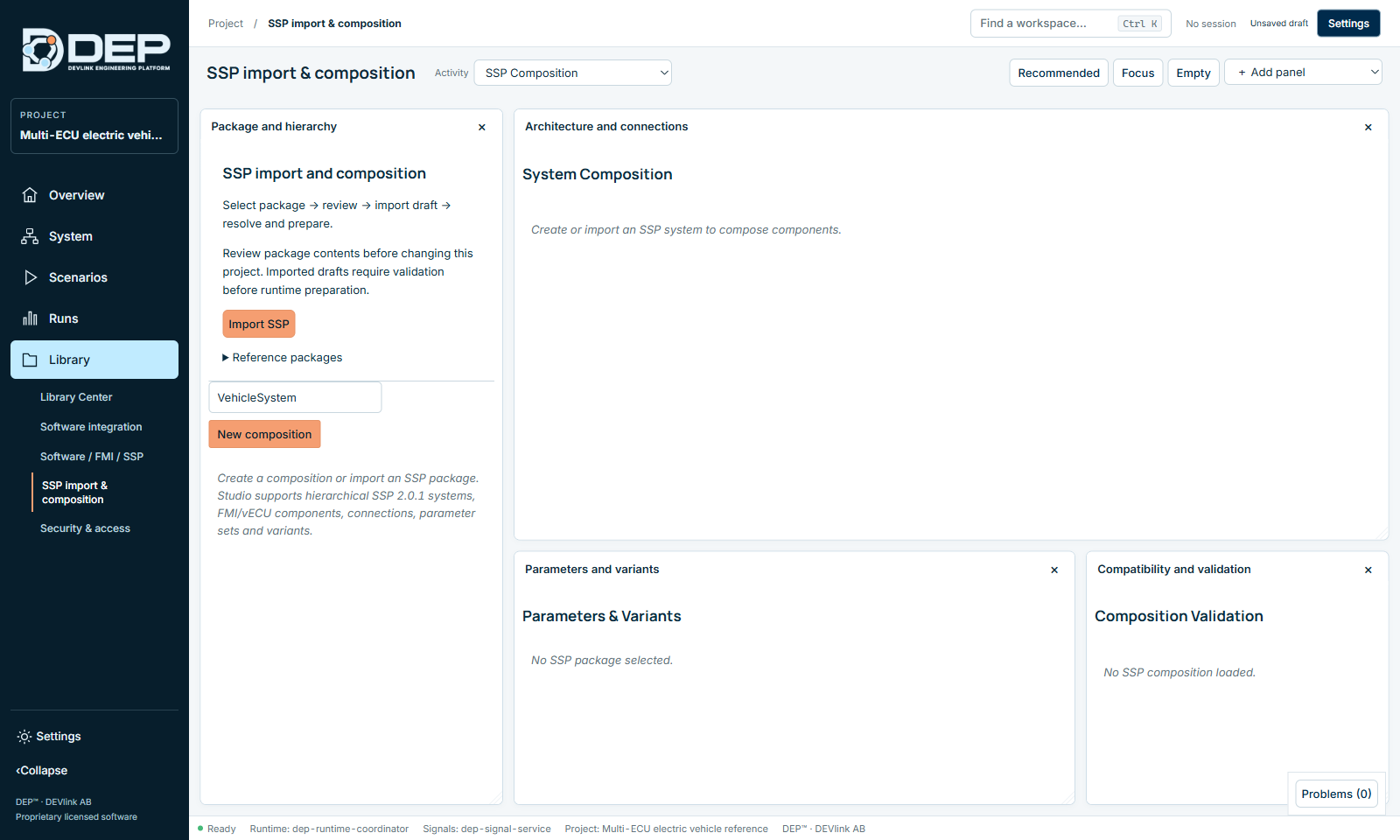
SSP (System Structure and Parameterization) describes a system of connected FMUs with parameter sets and variants. DEP supports a subset of SSP 2.0.1: hierarchical systems, FMI and vECU components, connections, parameter sets and variants. Open Library → SSP import & composition.
Import an SSP package
- SelectImport SSP and choose the
.sspfile (dialog Import SSP 2.0.1 System). Under Reference packages you can load DEVlink's reference EV bench instead. - ReviewThe IMPORT SSP ARCHITECTURE review lists the package contents and the compatibility findings. Nothing changes in the project yet.
- Import as draftSelect Import as draft. The system appears under Package and hierarchy and in System Composition.
- Resolve and prepareFix the findings in Composition Validation and select Validate now. Then select Materialize runtime to make it executable.
Review problems are reported as DEP-SSP-REVIEW.
Compose a system
- Type a name and select New composition.
- In System Composition: Add component, Add subsystem, and Add connector with type Float64, Float32, Int32, UInt32, Boolean, String, Binary or Clock. Then Connect.
- In Parameters & Variants: New parameter set, Bind set to component, Activate, and Apply model/parameter override for variants.
- Export SSP writes an SSP 2.0.1 package (default name
restbus-system.ssp).
MathWorks models
Simulink models in a restricted MDL/SLX subset can be brought in through Integrations… → MathWorks integration: Inspect SLX / MDL, Inventory project folder, Save editable DEP model and Build executable FMU for System. DEP makes no claim of numerical equivalence with Simulink. Verify the converted model with scenarios.